

Add or remove staffer
You can manage salon staffers under Menu → Staff Members.
Add Staffer
Section titled “Add Staffer”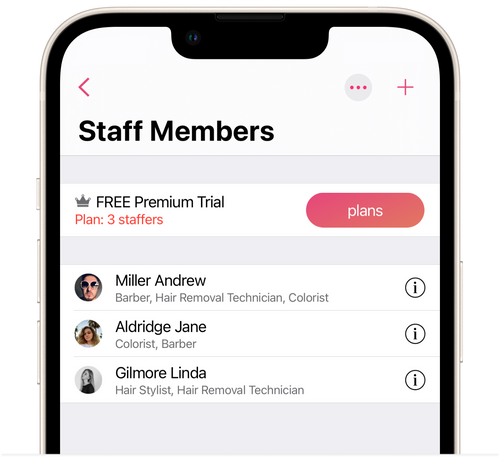
- Tap + in the top right corner of the screen.
- Enter the staffer’s phone number and tap Done.
If the staffer is already registered with our Masters service, we suggest that you send an invitation to join your salon. The invitation will appear for your staffer in the Masters Pro app.
If the staffer is not registered in Masters service, we suggest you add them manually. In this case, you will need to send an invitation. In invitation confirmation code will be sent to your staffer by text message. Your staffer will then have to give you the code in order to be added to your salon. In this case, the staffer will not see their own calendar, client booking, etc. You will have to tell them about all changes personally. We also suggest that when you add a staffer who is not registered in Masters, that you send them a link to download the Masters Pro app. If the staffer then downloads and registers in the app, they will see their schedule, bookings, and income from bookings.
⏵ Staffers can download Masters Pro. Staffers will not see all the salon’s clients’ information in their own apps. Only the names of clients will be displayed to them. They will also have access to the data of only those clients who have booked them, and income from those bookings, corresponding with their set revenue percentage, and their calendar.
Links to download Masters Pro:
iOS: https://apps.apple.com/us/app/id1010198076
Delete Staffer
Section titled “Delete Staffer”To remove a staffer, open their profile, scroll at the bottom of the screen, and tap on the Delete button. After you remove the staffer, they will get a notification in their app telling them that they have been removed from the salon.
⏵ If you have already paid for a salon subscription, then when you add or remove a staffer, the salon subscription will be recalculated automatically in accordance with the number of staffers at the salon, and the duration of the subscription will change. A notification of the new expiration date of the subscription will be sent to your salon in the live support chat.
Configure the display order of staffers on the calendar and the online booking page
Section titled “Configure the display order of staffers on the calendar and the online booking page”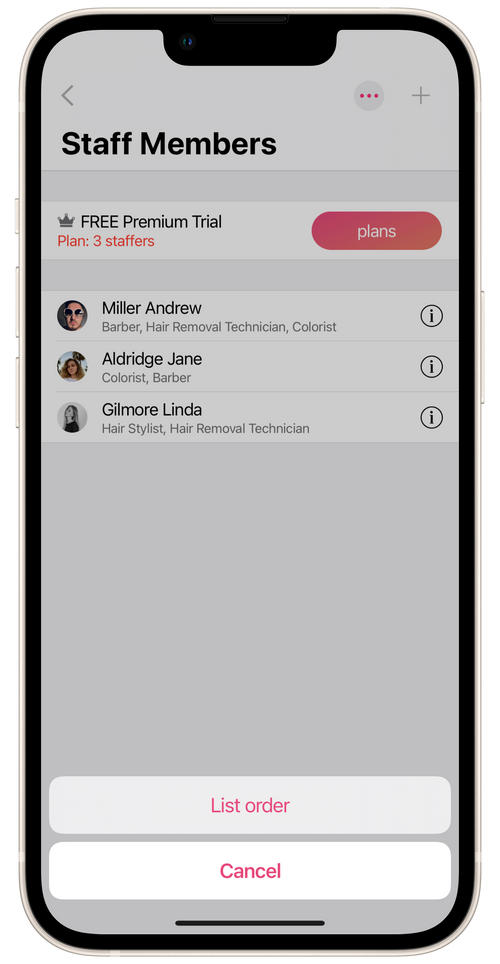
- Go to Menu → Staff Members.
- Tap on the three dots in the top right corner of the screen and then on List Order.
- Pinch the dots to the right of the staffer and drag them.
- Tap Done.
💡 Under Menu → Staff Members you can also go over subscription rates. To do this, tap on the Plans button. The Subscription Plans screen will open. You can familiarize yourself with their features and prices. The payment for a salon subscription depends on the number of staffers at the salon. In a salon, you cannot pay for a subscription for only some of your staffers. If you are planning to add or remove staffers, then your paid subscription will be automatically recalculated by the app to correspond to the new number of staffers at the salon.