

Location and business hours
In the Masters Pro app, you can add more than one business location. Each location can have its own schedule and list of available services.
To add a new location, go to Settings → Location and Business Hours.
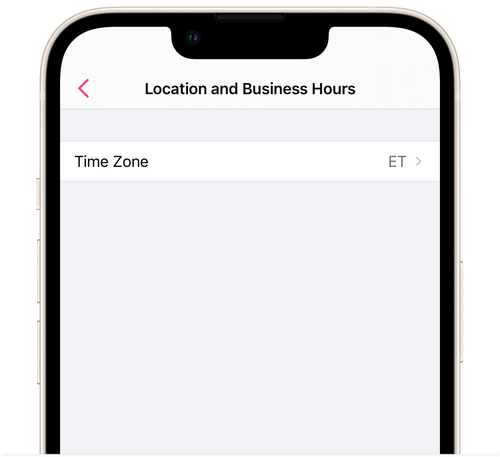
New location
Section titled “New location”- Choose the time zone that you currently work in. Creation and display of appointments in the schedule will take place according to the local time in the selected zone.
- Tap Add New Location and select the New Business Location button.
- Enter the name.
- Add the city and address.
- You can add comments to the location and configure who will be able to see them.
If the Public Comment option is turned off, the comments will be displayed only in messages that you send to clients, and will not be displayed on the online booking page.
If the option is turned on, then the comment will be displayed on the online booking page and everybody could see it.
- Choose a color for the location. This color will be displayed on your schedule. If you have more than one workplace, then it will be easier to tell them apart by color.
- Configure your work schedule. The schedule will be shown on your online booking page.
- At the very bottom of the page, activate the option Priority Location, if you want, to show this location first during booking.
Tap Done.
Mobile Services
Section titled “Mobile Services”In the app, you can add a Mobile Services workplace. This is the right option if you provide service at the client’s location.
- Choose the time zone where you currently work. Creation and display of bookings in the schedule will take place according to the local time in the selected zone.
- Tap Add New Location and choose the Mobile Services button.
- Enter the conditions of the service: city and comment. Set up who will be able to see the comment.
- Choose a color. This color will be displayed on your schedule. If you have more than one workplace, it will be easier to tell them apart by color.
- Configure your work schedule. The schedule will be shown on your online booking page.
- Activate the option Priority Location, if you want, to show this workplace first during booking
- Tap Done.