

Create personal event or break
- Open the Calendar section and tap Add Appointment or Personal Event.
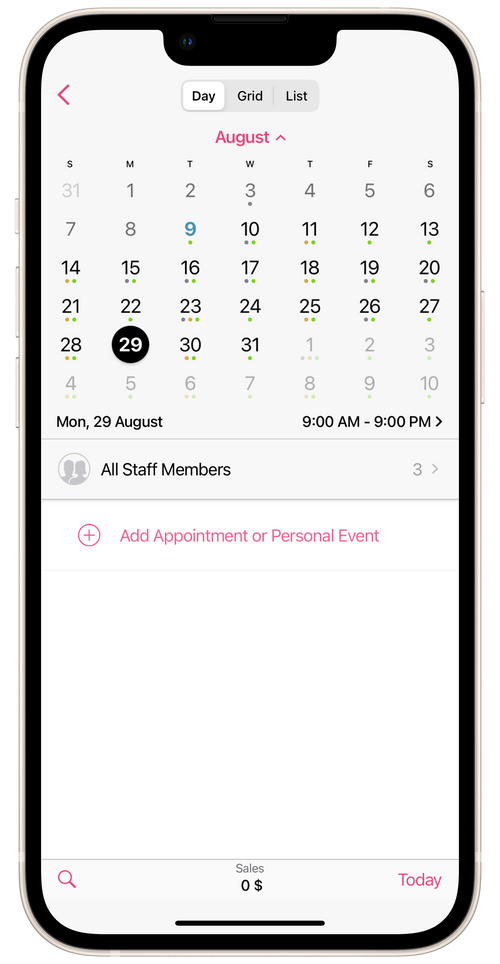
- Tap Personal Event mode at the top of the screen.
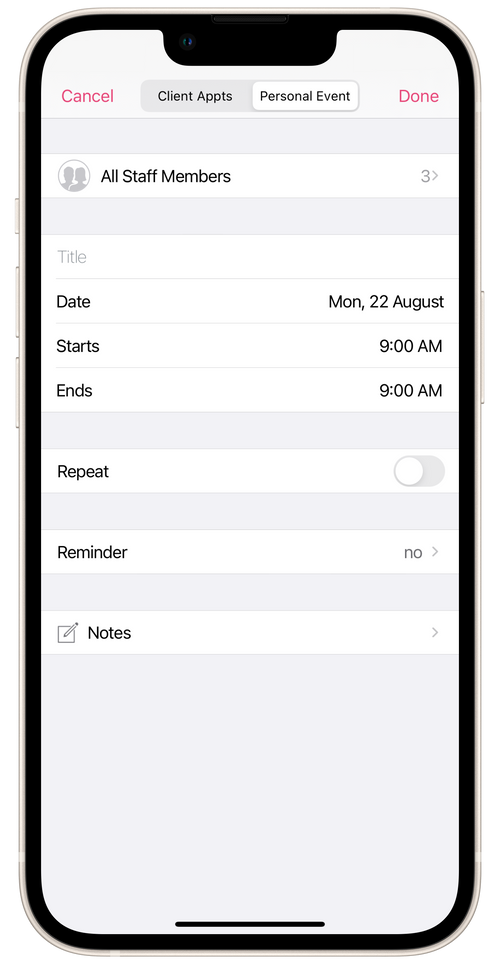
-
Select which staffer to set up a break or personal event for. If you want to set up a break for all staffers at once, choose the All Staff Members option.
-
Enter a title.
-
Set up start date and time.
-
If needed, set the event to repeat.
- Set the end date for the repeating event. In this case, the event will repeat every day until the date you have entered.
- Set up days of the week on which the event will repeat. In this case, the event will repeat until the date you have given on the selected day of the week.
-
Set up event reminders, if needed. The staffer will get a notification about the event in their Masters Pro app.
-
Add notes to the break as desired.
-
Tap Done.
The break will be displayed in the schedule in the salon’s and the staffer’s apps. If necessary, you can change or delete the break. The staffer cannot change or delete from their app a break that you have set for them at the salon.
If you have already set up repeating events, you can delete them all at once, or only one on a specific day. To delete all repeating breaks at once, find the date in the schedule when the repeating break you need to delete begins, tap on it, then tap the Delete button and choose This and future events.