

Salon online booking page settings
You can configure the salon’s Online Booking Page under Settings → Online Booking Page → Booking Page Settings.
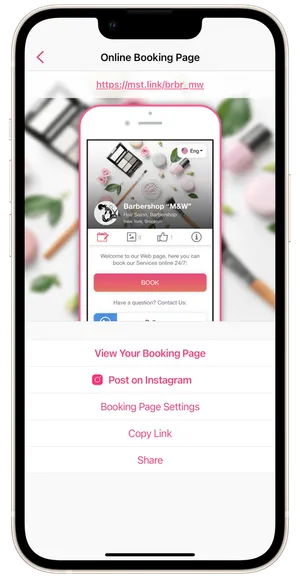
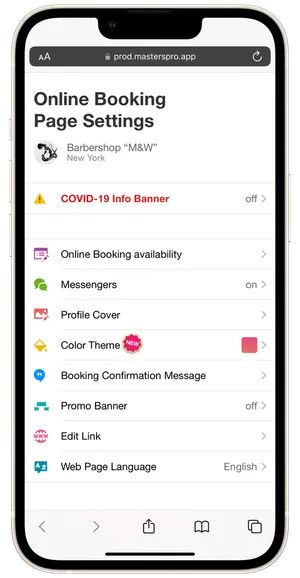
On this screen, you can:
- Manage your online booking and price list;
- Configure the display of messaging apps to reach you;
- Edit the cover of your online booking page;
- Change the color scheme of your online booking page;
- Edit the message that clients see after booking online;
- Add/delete an Promo banner;
- Change your name as it appears in the link to your online booking page;
- Configure the language of the online booking page.
Online booking availability
Section titled “Online booking availability”In this section you can turn off/on online booking for clients and the display of your price list on your online booking page.
- If online booking is turned on, clients can book online with you at any available time.
- If the price list is turned on but online booking is turned off, time slots will not be available to clients for booking. In their place, only a list of your services from the price list will be displayed. In this case, clients will only be able to use your online booking page to familiarize themselves with your services and their durations and prices.
- If both buttons are turned off, the list of available services will be hidden on the page, and online booking will be unavailable. Clients who go to your online booking page will see the message: Online booking is temporarily closed.
Also, in this section, you can activate online booking only for those clients who are added to the app. After opening to your page, the client will first need to enter the phone number to check whether it is added to your app or not. New clients will not be able to book with you until your salon add them to the app. They will see a warning that the booking is unavailable.
⏵ The restriction of online booking for new clients is only available on the VIP Premium plan.
💡 You can set one general restriction for all staff on online bookings from new clients. There is no way in our app to set such a restriction only for a few employees in the salon.
Messengers
Section titled “Messengers”Messaging apps for contacting your salon will be displayed on the first screen of your online booking page as Call, WhatsApp, Viber and Telegram. You can put any phone number here that you want clients to be able to reach you at. The number can be different than the one you used for account registration. For contact via Telegram, you can leave your username. After editing messengers for contact, tap Save.
Profile cover
Section titled “Profile cover”Here you can change the cover of your online booking page: upload it from your phone gallery, open your camera and take a new photo, or upload a new file. You can use the Preview button to see how your cover will look on the online booking page. After uploading the cover, tap Save. If you have already uploaded a cover, you can delete it and return your cover to its default state by tapping Default Page Cover under the cover.
Color theme
Section titled “Color theme”In this section you can configure the color scheme of your online booking page choose from 40+ options! Premium color themes are also available for setup during the trial period You can use the Preview button to see how each color scheme will look on your online booking page. Exclusive themes are only available on the VIP Premium plan. After setting up your color theme, tap Save.
Booking confirmation message
Section titled “Booking confirmation message”This is a message that the client sees after sending you an online booking request on your booking page. In this section, you can see what the message will be displayed like on the client’s screen. Below, you can edit the text of the message. We have added parameters to represent the client’s name and your phone number {name} and {phone}. You can use these, or delete them from the text if you don’t want to use them.
{name}
Section titled “{name}”This parameter will display in after booking message the name of the client as they provided it to send you an online booking request, if they book with you via the booking page. If the client books with you via their own Masters app for clients, the message will show the name that they provided at app registration.
{phone}
Section titled “{phone}”This parameter will display in the after booking message your phone number, as you have entered it in the app under Settings → Profile → Account - i.e., the number that is linked to your Account.
After editing the text, tap Save at the bottom of the page.
Promo banner
Section titled “Promo banner”The promotion banner is designed for you to be able to place important announcements, sales for clients, or greetings. In this section you can turn on the banner, set its headline and main text, and choose its color and icon color. In general, here is no character limit on the main banner text. To preview how the information banner will look on the online booking page, tap on the Preview button. After editing, tap Save.
Edit link
Section titled “Edit link”In this section you can change the name of your salon as it appears in the link to your online booking page. In the name, you can use only letters, numbers, and the symbol _. After changing the link, tap Save at the bottom of the page.
Booking page language
Section titled “Booking page language”Five languages are available for the online booking page: English, Spanish, Portuguese, Russian and Ukrainian.You can choose which language will be displayed by default.
💡 If the online booking page visitor has chosen one of the supported languages in their device settings, then the page will automatically be displayed for them in that language. If the visitor has chosen a language that is not supported by our app (Polish, for instance) in their device settings, then for them the online booking page will automatically be displayed in the language you select for it.
The client can also independently choose any of the five supported languages when going to your online booking page.