

Add services
You can add services in the Settings → Services and Products section.
- Click Add Service.
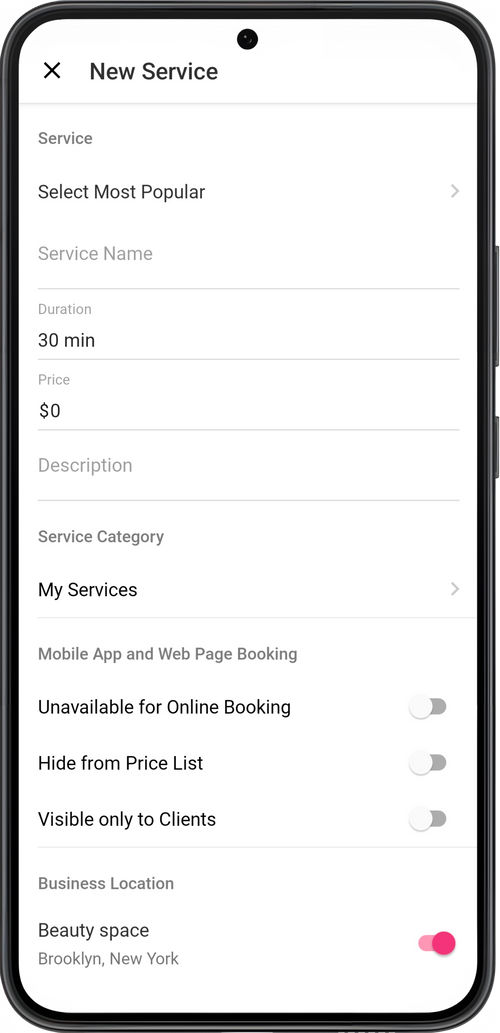
- Enter the name of the service.
- Add the price, duration and description of the service.
- Select the category where the service will be located.
- Configure the service display on the online booking page.
By default, the service is available for online booking, displayed in the price list and visible to all clients.
Unavailable for Online Booking
Section titled “Unavailable for Online Booking”When this option is activated, the service will appear in the price list on the online booking page, but clients will not be able to book it—there will be a phone icon next to the service. This means the client can only call you for a consultation about this service.
Hide from Price List
Section titled “Hide from Price List”When this option is activated, the service will not appear on the online booking page; clients will not see it and will not be able to book it.
Visible Only to Clients
Section titled “Visible Only to Clients”When this option is activated, the service is available for booking only to clients who book through the Masters mobile app for clients. For new clients and those booking through a web page link, the service will be hidden.
If you want to enable web page booking only for your clients from the list in the app, you can enable this option in the web page settings under the VIP Premium plan.
- Activate the staff profiles that can provide this service.
- Assign work stations to the service, if needed.
- Select the Service Color. By default, no color is selected. The service color appears in the schedule.
- Click Done.