

Add products
You can add products under Settings → Services and Products. Toggle between the Services and Products tabs at the top of the screen.
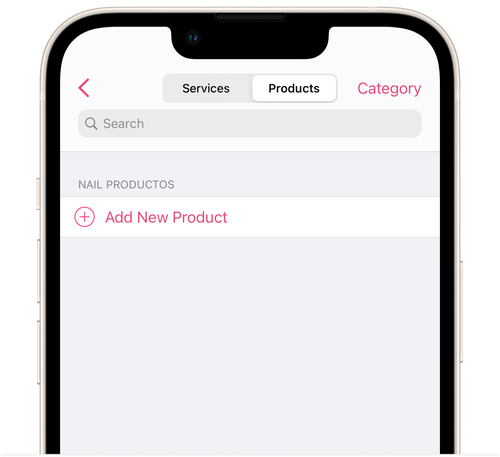
- Tap Add New Product.
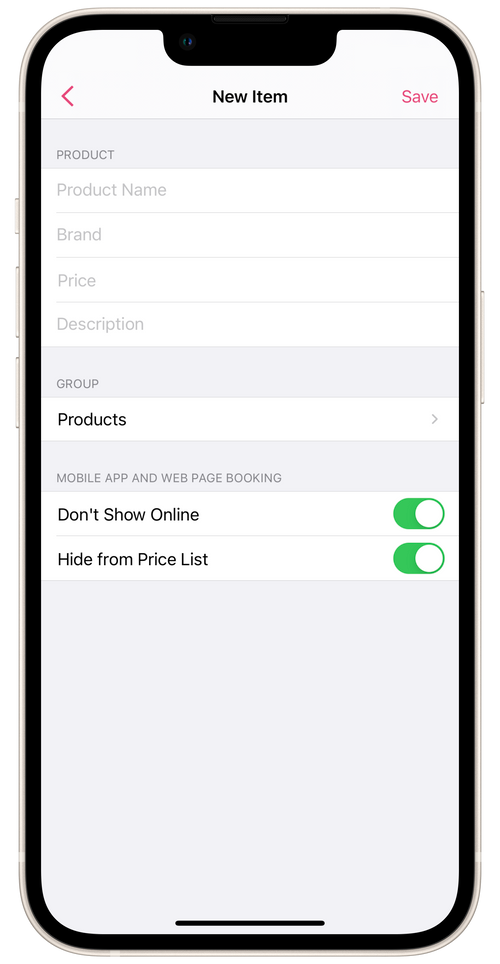
- Add the name, brand, price, and description of the product.
- Choose the category where the product will be located.
- Configure the product visibility on the online booking page.
By default, the product will be unavailable for online booking and hidden in the price list.
Don’t Show Online
When this option is activated, the product will be displayed on the price list on the online booking page, but clients will not be able to add it to bookings. Next to the product will be a phone icon. This means that clients can only call you to discuss details of this product.
Hide from Price List
When this option is activated, the product will not be displayed on the online booking page. The clients will not see it and will not be able to add it to their bookings.
- Tap Save.
💡 To add products, you first have to add a product category.
You can change the display order of products on the online booking page by tapping Category in the top right corner and then choosing a category. Tap on the hamburger button to the right of the product and arrange products in the right order.
In this app, every booking must contain a service. To sell products, you must add them to an appointment that already has at least one service in it.