

Client appointment page
After you have booked a client or the client has booked with you online, their appointment page is created. This page can be reached by following the link in the text reminders and notifications that you send to the client.
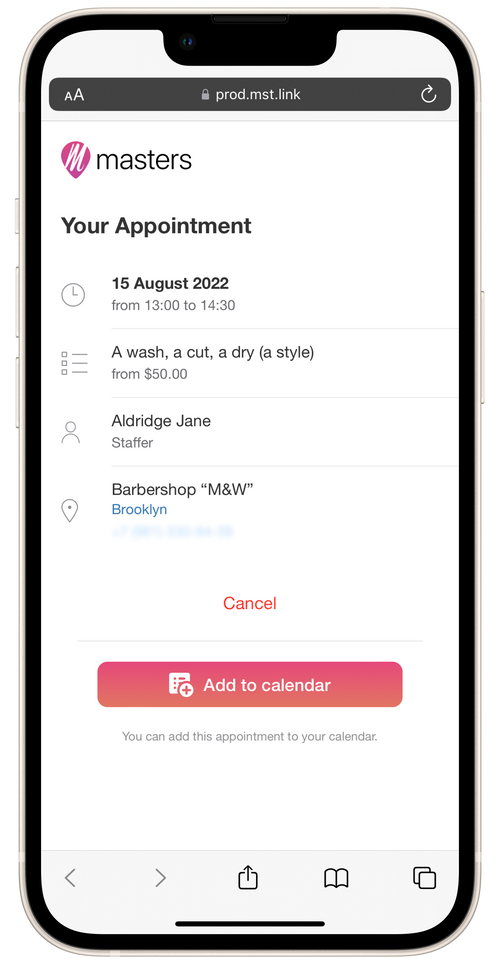
The link in the text reminders is controlled by a parameter {clientlink}.
Using this link clients can view complete information about their appointment:
- start time;
- duration;
- services;
- cost of services (you can optionally turn off display of cost of services under Settings → Client Appointment Link);
- name of staffer;
- address and name of the salon.
On the same page, the client can confirm the appointment, cancel or reschedule it, add it to their calendar, or schedule a new appointment with the same salon.
Cancel appointment
Section titled “Cancel appointment”The client can cancel their appointments from the page by tapping on the Cancel button. If desired, you can turn off all clients’ ability to cancel their bookings under the Settings → Client Appointment Link.
Important: if the client is already registered with the Masters Client app, they can still cancel the appointment in their own app, even if you have turned off the ability for clients to cancel appointments via the link.
Confirm appointment
Section titled “Confirm appointment”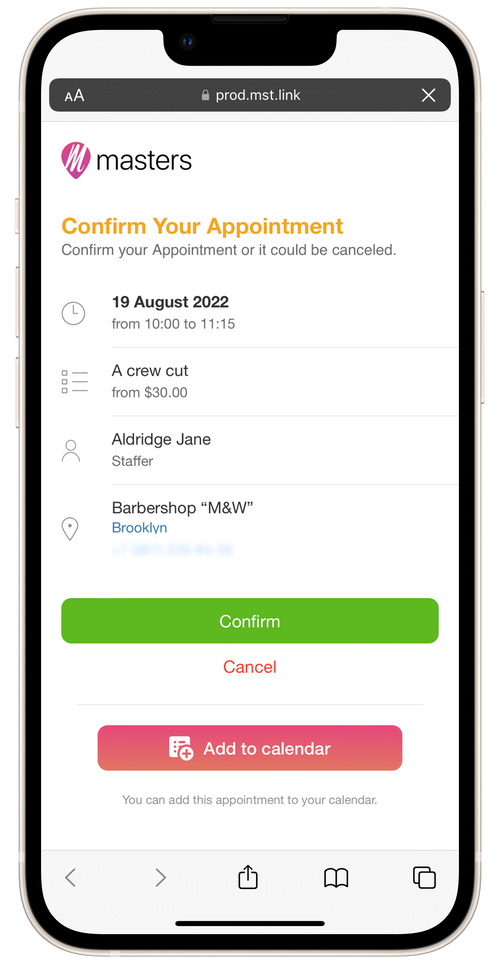
The client can confirm their appointment on the page by tapping on the Confirm button.
For the Confirm button to appear on the client’s appointment page, you need to activate the Client Appointment Confirmation option under Settings → Client Reminders & Notifications.
This button will be displayed on the appointment page only via the link in the Upcoming Appointment message, and only after this reminder is sent by a verified method that the app offers (WhatsApp, Telegram or text message). If you copy the reminder text and send it outside the app by another method (Instagram or Facebook Messenger, for example), the Confirm button will not appear.
In other reminders that you send to clients, the Confirm button will also not be displayed on the appointment page.
Add appointment to calendar
Section titled “Add appointment to calendar”If they want to, clients can add their appointments to their phone calendars via the Add to Calendar button. To do this, they will be invited to subscribe to the Masters calendar. After the client adds the calendar on their phone, it will automatically display all past and future bookings at the salon.
Repeat bookings
Section titled “Repeat bookings”The client can go to the page of a past or cancelled booking via the link in any message you’ve previously sent and book with the salon again.