

Main reporting screen in the salon
On the main screen of the Reporting section, you can view reports on salon sales, clients, services and expenses. The widgets briefly present general data for each category of reports. Clicking on the widget opens the full view of the report.
Basic Widgets:
Section titled “Basic Widgets:”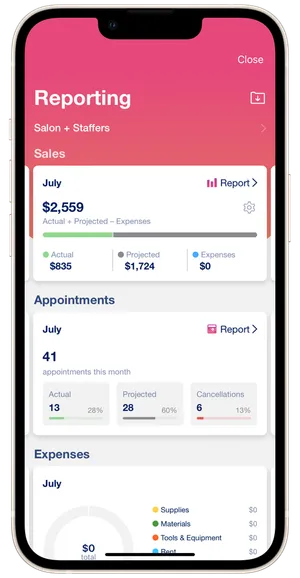
The widget displays the total revenue of the salon for the current month. You can adjust the formula for calculating the final sales by clicking on the gear icon. The widget can be scrolled to the right and left to view sales for past and future periods.
Appointments
Section titled “Appointments”The widget shows the total number of appointments in the salon for the current month by category: actual, projected, cancellations. The widget can be scrolled to the right and left to view data for past and future periods.
Expenses
Section titled “Expenses”The widget displays the total amount of expenses in the salon for the month by category. The widget can be scrolled to the right and left to view expenses for past and future periods.
Clients
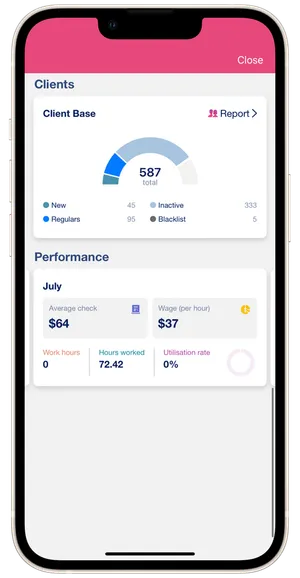
Section titled “Clients”The widget shows the total number of clients in the salon by category. It always displays the data for the current moment, so the widget does not scroll.
Performance
Section titled “Performance”The widget displays the main indicators of the working efficiency of the salon and staffers in general. The widget can be scrolled to the right and left to view data for past and future periods.
Selecting the display of reports (by salon/by staffers)
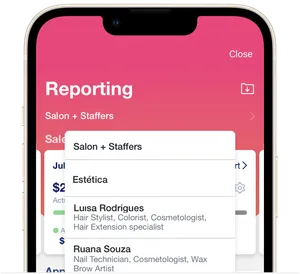
Section titled “Selecting the display of reports (by salon/by staffers)”Reports can be viewed by salon and all employees at once, only by salon or for each staffer separately. To select the display, click on Salon + Staffers on the main screen. The display selection to view applies to all reports.
- If you select Salon (salon name) to view the sales, then all reports will display the revenue of the salon without the revenue of the staffers.
- If you select Staffer (name of the staffer) to view, then all reports will display the revenue of the selected staffer in this salon.
- If you choose to view Salon + Staffers, then all reports will display the total revenue of the salon and all the staffers.
Export Reports
Section titled “Export Reports”Click on the folder icon in the upper right corner and download the reports in Excel file format. The file will be sent to the email address specified in the salon profile.
💡 You can export reports only on the VIP Premium plan.
Color Theme
Section titled “Color Theme”The background color of the Reporting section matches the theme in the salon app. You can set the color theme of the app in the Settings → Dashboard Color section.