

Add expenses
You can add expenses under Menu → Expenses.
Before adding expenses, you can create categories and brands for them.
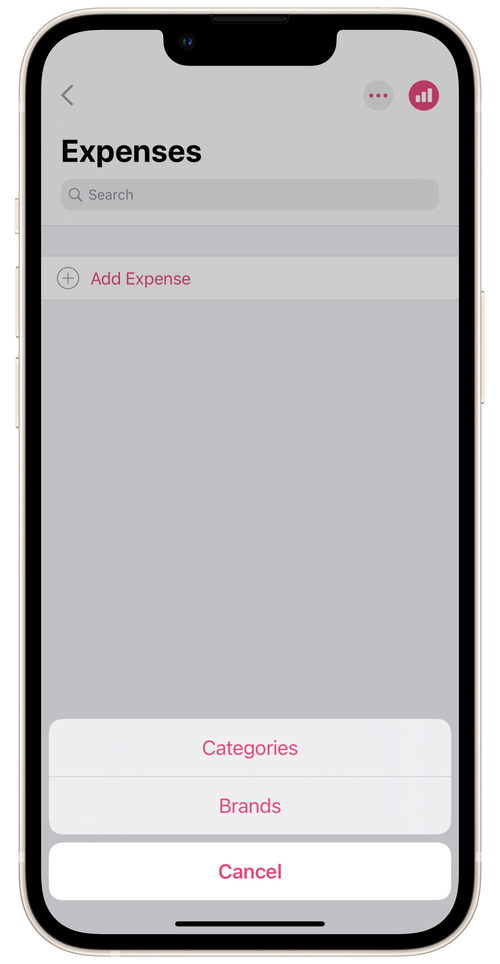
Adding expense categories
- Tap on the three dots in the top right corner of the section.
- Tap Categories and then Add category.
- Add the name of the category. For example, Materials.
- Pick a color for the category.
- Tap Done.
Adding product brands for expenses
- Tap the three dots in the top right corner of the section.
- Tap Brands and then Add brand.
- Add brand name.
- Tap Done.
Add expenses
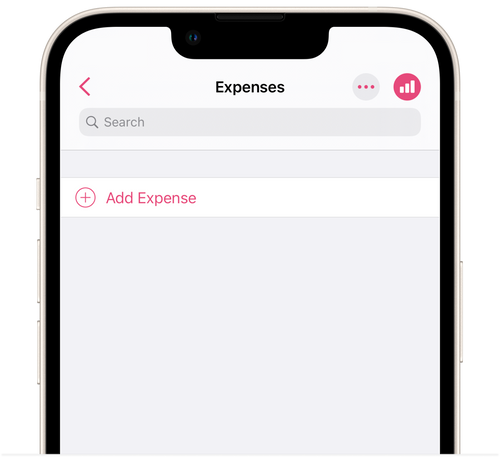
- Tap Add expenses.
- Give the date and name of the expense.
- Choose a category and brand for the expense, or leave the field as default - No category/No brand.
- Set the unit price.
- Choose the quantity bought. After you enter all the data, the total cost will be calculated automatically.
- Add comments on the expense as needed.
- Tap Done.
You can find an expense report in the section Menu → Expenses by tapping the bar graph icon in the top right corner. Or you can navigate the menus to Menu → Reporting → Expenses.