

Dashboard Widgets
On the main screen on the salon app there are widgets with brief information on your salon’s clients, staffers, bookings, finances, etc.
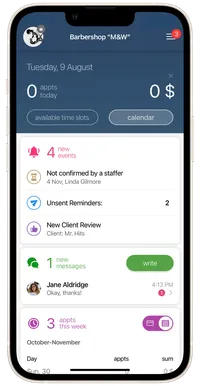
New events widget
Section titled “New events widget”This widget displays all information about bookings in your salon’s schedule, clients, messages, new online booking requests, clients’ birthdays, unsent texts to clients, time slots freeing up for bookings from the waitlist, etc. That is, everything that matters to you. The widget will always be at the very top, so you don’t miss any important reminders at the salon.
Messages widget
Section titled “Messages widget”This widget displays all new and unread messages from clients, staffers, and customer support. Via the Write button in the widget you can go to the messages section and create a new message/mailing or send a reminder to clients.
Clients widget
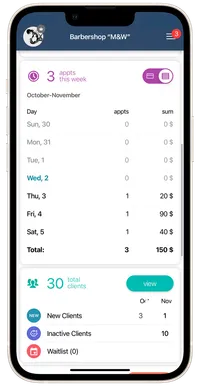
Section titled “Clients widget”This widget displays the total number in your client base on the app, and also statistics by client category:
- New clients - the number of new clients in the salon over the past two months.
- Inactive clients - the number of inactive clients over the past two months.
- Waitlist - total number of clients on the waitlist, and the number of clients who can be booked for services from the waitlist.
Via the View button on the widget, you can go to the Clients section and verify client categories, add/remove clients from client categories, book clients from the waitlist, and copy all clients to your phone contacts.
Staff Members widget
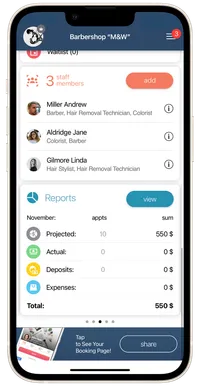
Section titled “Staff Members widget”This widget displays information about all salon staffers. When you tap on someone, it takes you to that staffer’s profile, where you can view or edit information. Via the Add button, you can add new staffers to your salon.
Reports widget
Section titled “Reports widget”This widget displays the salon’s revenue by month. In the widget, you can see revenue for the past two months, the current month, and the upcoming month.
-
In the Projected line, you can see number of future (not yet past) bookings at the salon in the current month and their revenue.
-
In the Actual line, you can see the number of already completed bookings at the salon in the current month, and their revenue.
-
In the Deposits line, you can see the number of bookings with deposits from clients and the total sum of all deposits only for future bookings at the salon. The Deposits line is just for your information about the total sum of deposits with bookings for the month. All deposits are automatically added to Expected.
-
In the Expenses line, you can see the total sum of expenses for the month.
-
In the Total line, you can see the salon’s full revenue for the month, taking into account deposits and expenses:
Total = Projected (including deposits) + Actual – Expenses.
Appointments this week widget
Section titled “Appointments this week widget”The widget displays the number of salon’s appointments and revenue for each day of the selected week. This widget also displays the total amount of revenue for the entire week.
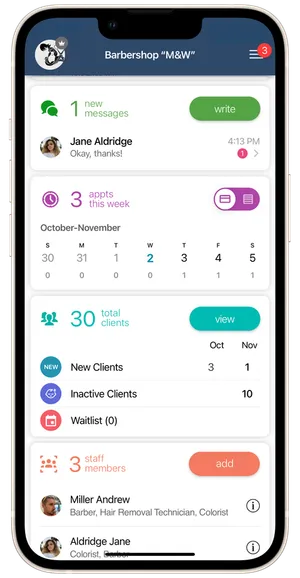
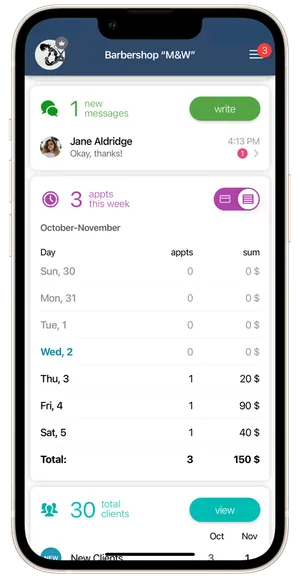
- If you want to check salon’s revenue by day and total revenue for the week, use the switch in the upper right corner of the widget.
- If you want to check the number of salon’s appointments by week, scroll through the weeks in the widget to the right or left.
- You can return to the current week by clicking the Today button.
- Click on the total number of appointments for the week in the upper left corner of the widget and you will have a calendar in the Grid mode.
- Click on any date from the selected week in the widget and this day will open in your calendar.
Configure widgets
Section titled “Configure widgets”You can configure the widgets on the main screen under Settings → Dashboard Widgets on the main screen.
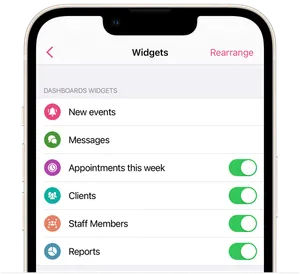
- The New events and Messages widgets can’t be turned off. They are required on the main screen so that you don’t miss new booking requests, cancellations, and messages from clients.
- The Reports, Clients, Appointments this week and Staff Members widgets can be turned off if desired.
- You can configure the order of widgets on the main screen by tapping Rearrange in the top right corner. The New events widget is pinned to the main screen and cannot be moved.
You can change the color of the Dashboard of the salon app under Settings → Dashboard Color. Pick a color you like and the new color settings will be applied automatically.