

Online booking scheduling setting
You can set up a scheduling type for online booking under Other → Profile&settings → Online Booking.
If you have more than one location, you need to choose one first under Other → Profile&settings → Online Booking, then configure online booking for each of it.
There are two ways to create available time slots for client booking:
Booking Slot Length
Section titled “Booking Slot Length”Slot Length - a length of time that will be used for each new available time slot for client’s booking. For example, if you have a booking slot set at two hours, then a new time slot will be available for booking each two hours after the start of the working day: 9:00 AM, 11:00 AM, 1:00 PM, 3:00 PM, etc. If there is a client appointment at some point, then the next available time slot will start immediately after this appointment, and so on every 2 hours.
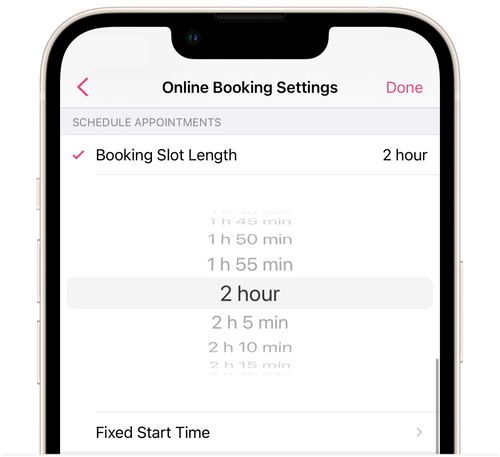
💡 This setting allows for a more effective use of available time and the creation of a more fully-booked working day.
Fixed Start Time
Section titled “Fixed Start Time”Fixed Start Time is specific hours for booking clients. For example, if you have set up a fixed booking start time at 9:00 AM, 10:00 AM, 11:00 AM, 12:00 noon, and 1:00 PM, then the client will be able to book services with you only at those times.
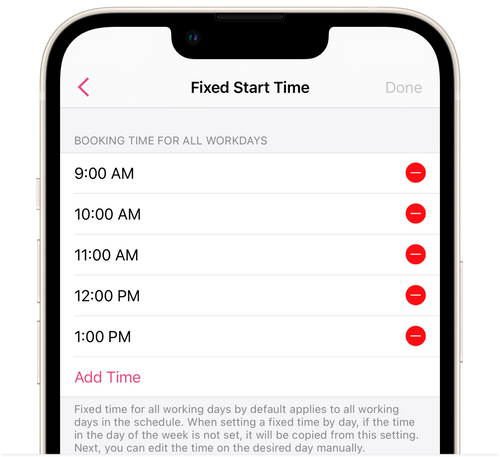
You can configure Fixed Start Time for each day of the week. Tap Fixed Start Time and turn on the By day of the week option. Add start times for each day of the week and tap Done.
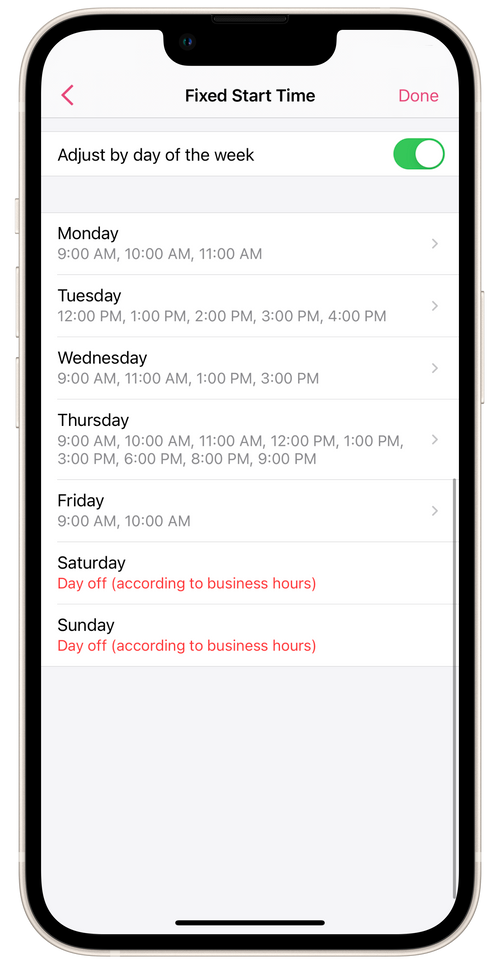
You can set a different fixed time for each day of the week.

⏵ Online Booking is configured separately for each business location.