

Add services
You can add services under Settings → Services and Products:
-
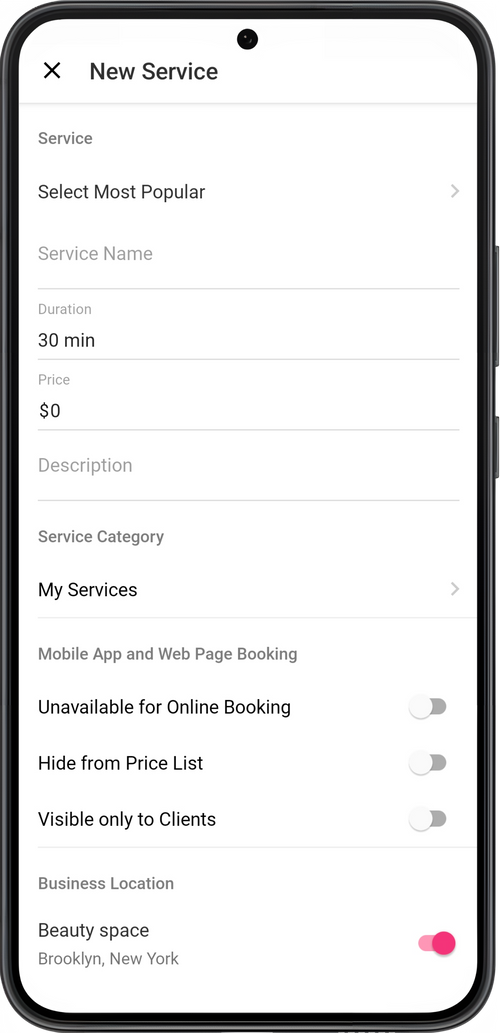
Tap Add Service.
-
Write a name for the service or tap Select Most Popular.
Services under Select Most Popular will be shown according to the specialty you chose in your profile settings.
-
Add a price, duration, and description for the service.
-
Choose a category for the service.
-
Configure the display of the service on the online booking page.
By default, the service will be available for online looking, displayed in the price list, and visible to all clients.
Don’t Show Online
Section titled “Don’t Show Online”When this option is active, the service will be displayed in the price list on the online booking page, but clients will not be able to sign up for it. Next to the service will be a phone icon. This means that the client can only call you to discuss details about this service.
Hide from Price List
Section titled “Hide from Price List”When this option is active, the service will not be displayed on the online booking page. Clients will not be able to see it or book it.
Visible only to Clients
Section titled “Visible only to Clients”When this option is active, the service will be available for booking only to clients using the Masters Pro app. For new clients and those booking through the website, the service will be hidden.
If you want to activate booking through the website only for those on the app client list, you can turn on that option in the booking page settings under the VIP Premium rate.
-
Choose the business location where the service will be provided to clients.
-
Save service.
💡 To add services, you first need to add a service category.
You can change the display order of services on the online booking page by tapping the dots to the left of the services in the selected service group.