

Available time slots
The Available time slots functionality helps you find available time for booking clients.
- Open the Available time slots section on the main screen next to Calendar.
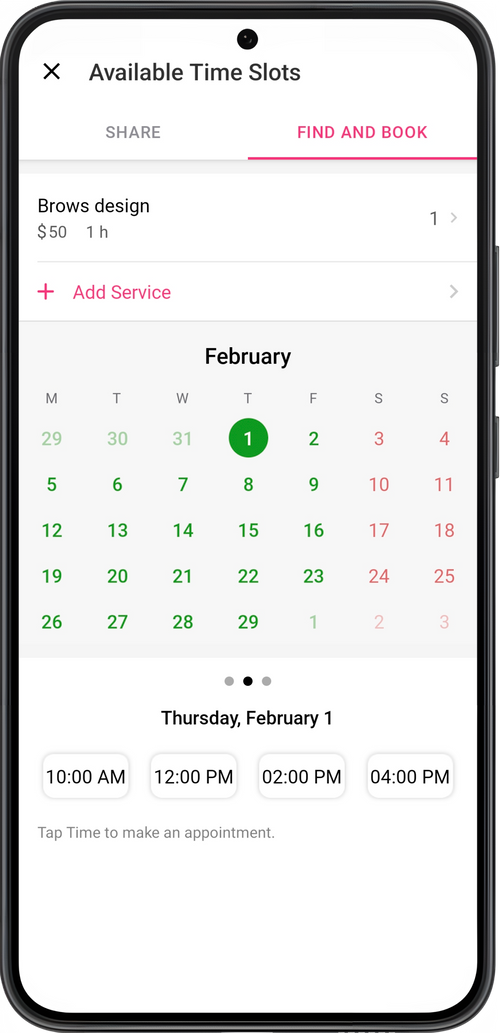
- Tap on the Find and Book tab at the top.
- Select the service and date in the calendar.
- Tap on the slot in the calendar. Below, select the time of the booking and create a service for the client.
Share your available time:
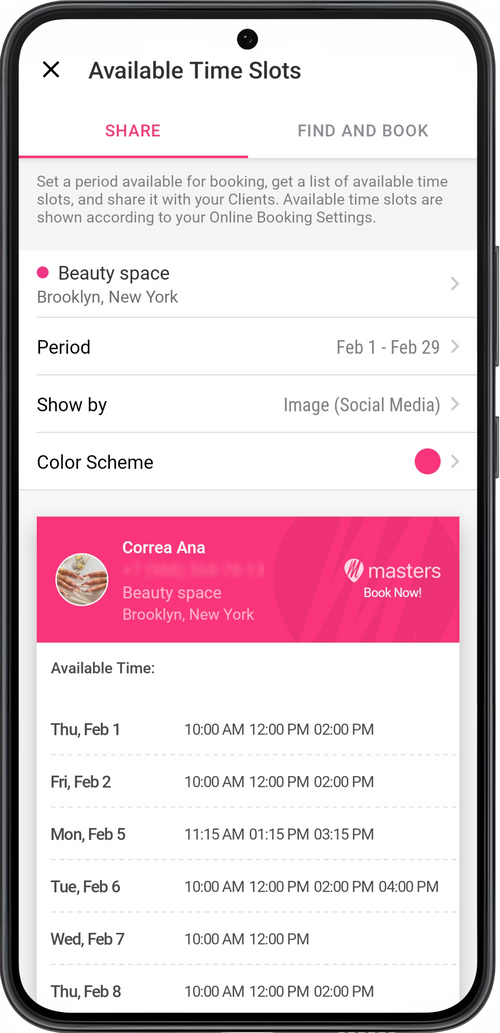
Section titled “Share your available time:”- Tap on the Share tab at the top.
- Select your business location, if you have more than one.
- Select the time period that you want to share and the color scheme.
- Choose the viewing mode for sending your free slots: Image for social networks or Text message.
- Tap Share and choose how to send or save the image.
💡 Share mode includes only settings of a fixed slot, as well as the professional’s schedule and bookings/breaks. The duration of services isn’t considered. In Find and book mode, the duration of services is taken into account.
You can edit the message template with free slots that you send in text format. To do this, go to the section Settings → Client reminders & Notifications → Text reminders templates, and open the Available time slots template.