

Client reminders and notifications templates parameters
There are parameters in all message templates. Each of these is responsible for certain information in the text. If parameters are added to the message text, then when the message is created, it will automatically display the desired corresponding information in the text of the reminder.
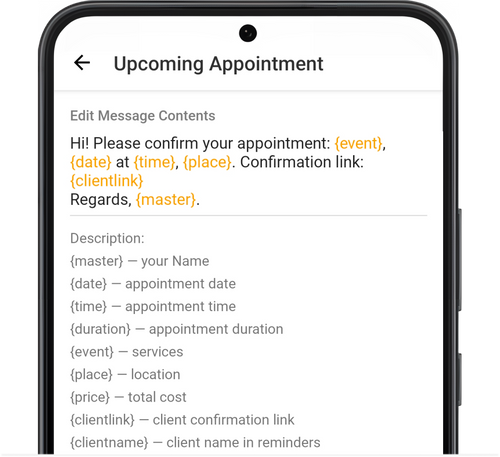
Parameters:
Section titled “Parameters:”{master} - name of beauty pro, your Name
The parameter will display your name in the message text as it appears in the settings of your profile.
{date} - appointment date
The parameter will display in the day of the week (abbreviated), date, and month. For example, a client is booked for you on Tuesday, the 26th of November. Then the text will show the booking as Tue, 26 Nov.
{time} - appointment start time
If a client is booked for you at 10 AM, then in the message text, it will be displayed as 10:00 AM.
{duration} - appointment duration
This parameter displays the full duration of all services in the client’s appointment. For example, the client has booked you for two services at once: Massage 1, duration of 2 hours, and Massage 2, duration of 30 minutes. Then the duration of all services in the message will be displayed as 2 hr. 30 min..
{event} - services
If your service is called Massage, then in the message it will also be displayed as Massage. If the client has booked you for more than one service, then they will be displayed in the message as Massage 1 + Massage 2.
{place} - location
This parameter will display in the message text the address that you entered in Location and Business Hours. If you have added a comment to the address, then that will also be displayed in the message text.
{price} - total cost
This parameter will display the full cost of services and the symbol of the currency of the country where the services are provided.
{clientlink} - client confirmation link
This parameter adds a client appointment link to the message. The client can follow the link and go over the full appointment information (time and date, services, cost, beauty pro’s name, phone number, and address), and also confirm the booking, cancel, or add it to their calendar.
The client can confirm an appointment only by following the link from the Upcoming Appointment message which you send the day before the visit.
If necessary, you can turn off display of the cost of services in the link under Settings → Client Appointment Link. In the same section, you can also turn off clients’ ability to cancel the appointment via the link.
💡 Important: clients who are registered in the Masters client app can still cancel their bookings in the app, even when that functionality is turned off via the link.
{comment} - reason for cancelling booking (for client)
This parameter works only in the message template Appointment Cancellation. The parameter will display the text that you write as the reason for cancelling when you cancel a booking under Calendar.
{clientname} - client name from the Name in notifications field in Client Profile
For the client’s name to appear in the message, you need to add the parameter {clientname} in the template, and also add the client’s name under Menu → Clients → Personal Info in the Client Greetings in Notifications field. If you do not fill out that field, then this parameter won’t work in the message text.
{time_slots} - available time for booking
This parameter works only in the message template Available Time Slots. The parameter will display as text all available free time for booking with you. You can set up available time to share it under Available Time Slots → Share. From this screen, you can send your clients messages with your available time. Choose the sharing method Text. Below you will see how the message will be displayed to the client when it is sent.