

Waitlist
The Waitlist feature allows you to set up booking requests for particular dates and times from clients and find available time slots for booking when they appear in your schedule.
Activate Waitlist
Section titled “Activate Waitlist”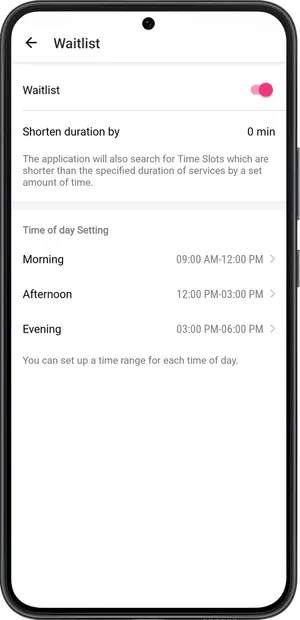
-
Go to Settings → Waitlist.
-
Activate the Waitlist.
-
Shorten the interval if necessary. If you do, the app will also find free time slots for services with a duration shorter than the one given.
-
Configure the time of day. Set up your desired time intervals for searching time slots during the morning, afternoon, and evening for booking.
Time of the day is the desired time range for booking. For example, if the client wants to book services with you in the first half of the day, then choose the time range Morning.
- Save the settings.
Add client to waiting list
Section titled “Add client to waiting list”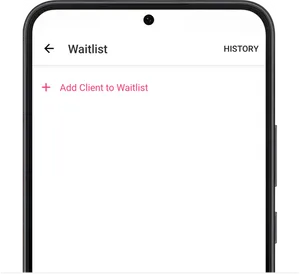
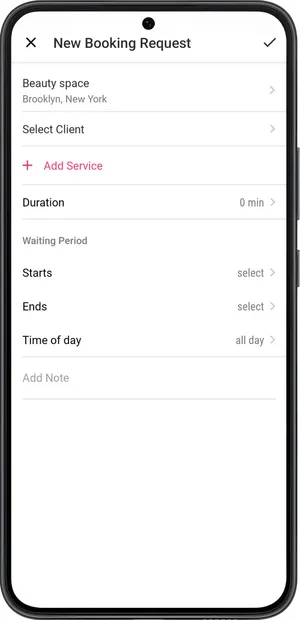
-
Go to Menu → Clients → Waitlist.
-
Tap Add Client to Waitlist.
-
Choose the location, client, and service. If needed, change the full duration of the selected service manually.
-
Change the waiting period.
- Starts - from what date the search for available slots in the schedule will begin.
- Ends - on what date the search for available slots in the schedule will end.
- Time of day - the desired time range for booking. For example, if the client wants to book services with you in the first half of the day, then choose the time range Morning. If the time doesn’t matter to you or the client, choose the time of day All day.
- Add notes if necessary, and save.
When an available time slot in your schedule is found, you receive a notification from the app, and you will be able to send the client a message saying that a slot has freed up, or immediately book them in the available slot.
💡 If the client is already booked with you on a future date, but you or the client has already decided to reschedule the booking and an available time slot has not been found, then you can move the client’s next booking to the Waitlist from that appointment in the schedule.
- Go to Calendar.
- Find and open the required booking.
- Scroll down and tap Cancel and add to the Waitlist.
- Enter the reason for canceling and rescheduling the appointment.
- Configure the waiting period and change other data in the request if necessary. The client in the appointment cannot be changed.
- Tap Done.