

Text reminder templates
Under Settings → Client Reminders & Notifications → Text Reminders Templates, you can configure the following client notifications:
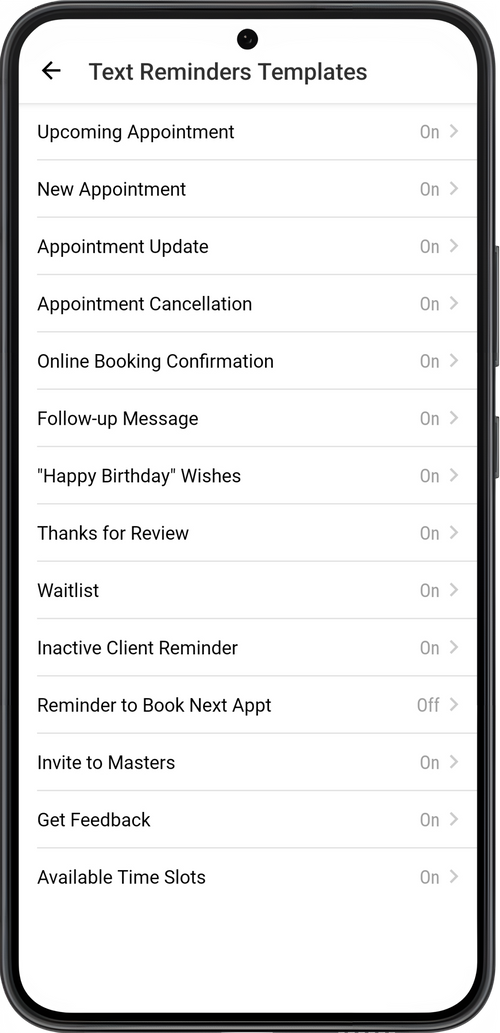
Upcoming Appointment
Section titled “Upcoming Appointment”The reminder of the client’s upcoming appointment with you. It will be offered for sending the day before the appointment (by default), or another time range you set.
In the template you can configure:
Notification Sending Frequency
How long before the appointment the client should be sent: 1 hour, 2 hours, 4 hours, 6 hours, 1 day, 2 days, 3 days, 1 week. If you want, you can add more than one reminder: for example, 1 day and 1 hour before the appointment time.
Send Time
You can manage the time the messages are sent only for reminders 1 day, 2 days, 3 days, and 1 week before the appointment. You can set any time convenient for you.
For example, if the client’s appointment is for July 30th at 2:00 PM and you have set up a reminder one day before at 10:00 AM, then the application will offer to send a reminder to the client about the appointment on July 29th at 10:00. If you have set up more than one reminder - for example, 1 day and 1 hour ahead of time - then the application will offer to send the first reminder on July 29th at 10:00 AM, and the second one on July 30th at 1:00 PM.
Reminder Interval
Turn on a send interval, if you like, and configure the interval. Each time interval you choose, the app will notify you about sending a reminder for each appt for the day in the order of their turn.
For example, if on July 30 you have clients scheduled for 10 am, 12 noon, 14 PM and you have set sending reminders for 1 day at 10 AM with an interval of 5 minutes, then reminder messages for each appt will be offered to you for sending on July 29 starting from 10 AM every 5 minutes until you send them to clients:
- at 10 AM on July 29, you will be asked to send an appointment reminder for 10 AM on July 30;
- at 10:05 AM on July 29, you will be asked to send an appointment reminder for 12 noon on July 30;
- at 10:10 AM on July 29, you will be asked to send an appointment reminder for 14 PM on July 30, etc.
New Appointment
Section titled “New Appointment”This is a client notification of a new booking for service. It will be offered sending immediately after you create a new appointment in the calendar.
Appointment Update
Section titled “Appointment Update”Client notification of a change to the appointment. It will be offered for sending immediately after changes are saved to an already-existing client appointment.
Appointment Cancellation
Section titled “Appointment Cancellation”Notification that you have cancelled an appointment. It will be offered for sending immediately after you cancel an appointment.
Online Booking Confirmation
Section titled “Online Booking Confirmation”Notification that you have confirmed a client’s online booking request. It will be offered for sending immediately after you accept the client’s online booking request.
Follow-up Message
Section titled “Follow-up Message”Notification after the end of the client appointment. It will be offered for sending the amount of time that you set up after the end of an appointment. You can also set up in the template which clients to send the message to: all of them or only new ones.
Happy Birthday Wishes
Section titled “Happy Birthday Wishes”Message template with birthday wishes for the client. It will be offered for sending on the client’s birthday. You can add the client’s date of birth on the client profile under Menu → Clients.
Thanks for Review
Section titled “Thanks for Review”Response to receiving a client review. To send the message, go to Menu → Reviews → Published and tap Respond on the relevant review.
Waitlist
Section titled “Waitlist”Notifies a client from the waitlist that available time for booking with you appeared in your schedule. To send the message, go to Menu → Clients → Waitlist and tap Notify on the relevant request.
Inactive Client Reminder
Section titled “Inactive Client Reminder”Notification to client in the Inactive group. To send the message, go to Menu → Clients → Inactive Clients and tap Remind.
Reminder to Book Next Appt
Section titled “Reminder to Book Next Appt”Notification reminding the client to book next appointment with you. This will be offered for sending the amount of time you choose after the client’s last booking. You can also set up a sending time and interval in the template.
Invite to Masters
Section titled “Invite to Masters”Invites the client to download Masters for clients and register with the service. To send the invitation, open the client profile under Menu → Clients and tap Invite at the bottom of the screen.
Get Feedback
Section titled “Get Feedback”Notification of the client feedback, with a link. Any client who has already had at least one appointment in the past with you can leave a review. You can send a request for a feedback under Menu → Reviews.
Available Time Slots
Section titled “Available Time Slots”Notification that there is available time for client to book with you. Available time slot messages for sharing are created in the section Available time slots → Share. In the same section you can send a message to the client with your available time slots. Choose the display option Text.
💡 This application does not send any messages automatically. Every message must be confirmed before it is sent.
All messages that the application offers to send can be deleted, postponed, or cancelled. When cancelling a message, you can choose either to delete it also or not.
- You can postpone sending a message for 5 minutes, 10 minutes, 30 minutes, 1 hour, 2 hours, 4 hours, 8 hours, or 12 hours. Open the app, and go to the message in the suggested messages screen. Tap either Postpone Sending or Delay Sending (select all) if you have no time for sending messages at the moment, or you want to send them later.
- You can delete messages by opening the app, going to the suggested messages screen, tapping Cancel, and then tapping Yes or No. You will be able to find deleted messages and send them to clients under Menu → Messages → Reminders and notifications tab, and also in the relevant appointment’s info screen in the schedule.
All message templates and their settings can be reverted to default. To do this, open the message template, and tap on Restore Default Template at the bottom of the screen.