

Add clients
You can add clients manually or from your phone contacts under Menu → Clients.
Add Manually
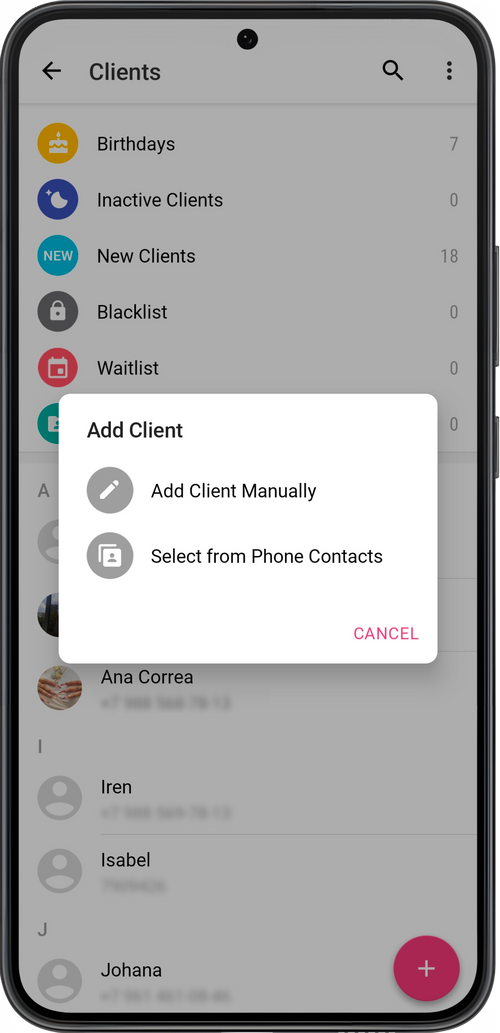
Section titled “Add Manually”Go to the Clients section, tap + and an icon with a man, and choose Add Client Manually.
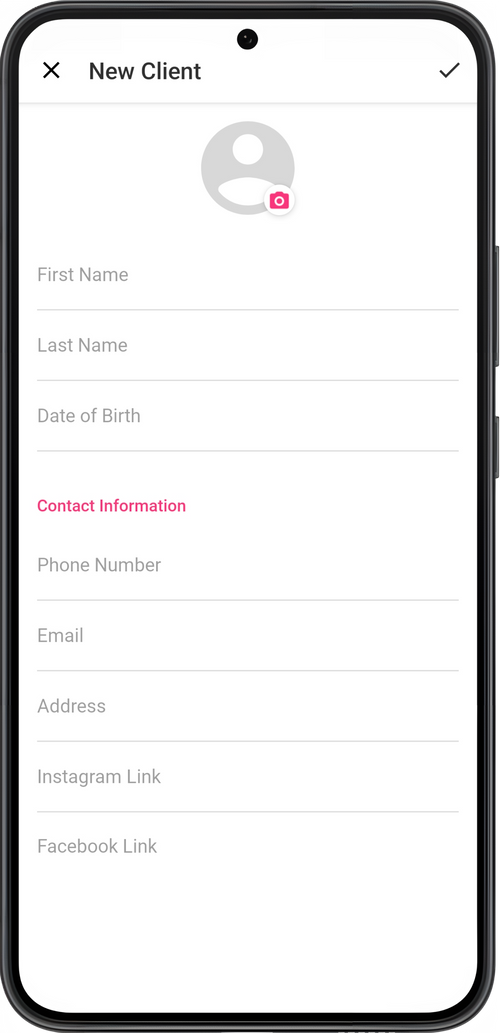
Enter the clients name and phone number (required), and other information. If needed, choose Add to Phone Contacts.
From phone contacts
Section titled “From phone contacts”Go to the Clients section, tap + and an icon with a man, and choose Select from Phone Contacts. Choose one or more contacts from your address book and add them to the app.
💡 Please note that to add contacts from your phone’s address book, you first need to allow access to your phone contacts. You can do this in your device’s application settings.
💡 If you don’t know the client’s phone number yet, you can temporarily enter any other digits instead. The main thing is that they should not be the same as any other client’s. Otherwise, the app will only be able to see one of them. Then when you find out the client’s phone number, change it to the real one in the app.
⏵ The phone number is the user’s identifier in the app. It’s used for distinguishing clients and for sending them text messages (including in messaging apps). For that reason, you need to enter the phone number for the app to function correctly.